How do I create a Designer QR Code in my account?
- How to create a designer QR Code in your account
- 1. Log into your account
- 2. Click on Design QR from the QR Code options menu
- 3. QR Code design templates
- 4. Choose your QR Code's colors and background
- 5. Select design patterns for your QR Code
- 6. Select your QR Code's frame and set a label
- 7. Choose or upload your QR Code's logo
- 8. Use an image as your QR Code's background
- 9. Set your QR Code's size and ECL
- 10. Download your QR Code
- Saving your custom templates
- Optional template attributes
- Template Markers
- Deleting a template
- Overwriting an existing template
How to create a designer QR Code in your account
1. Log into your account
Accedere al proprio account sulla nostra piattaforma QR.
Login
2. Click on Design QR from the QR Code options menu
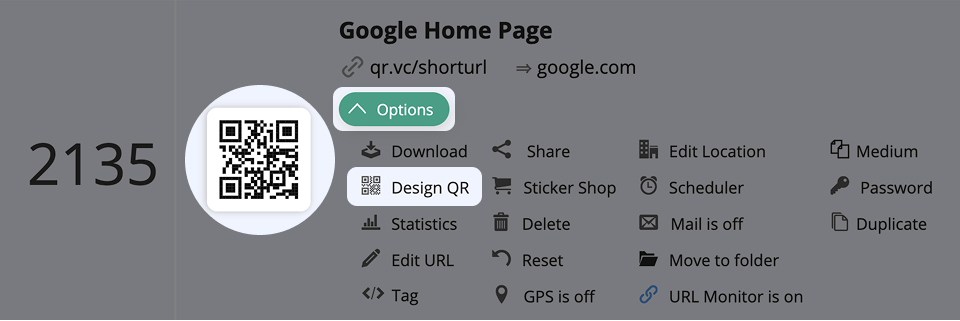
Time to take a closer look at the different options in our QR Code Designer, like templates, colors, logo, and more.
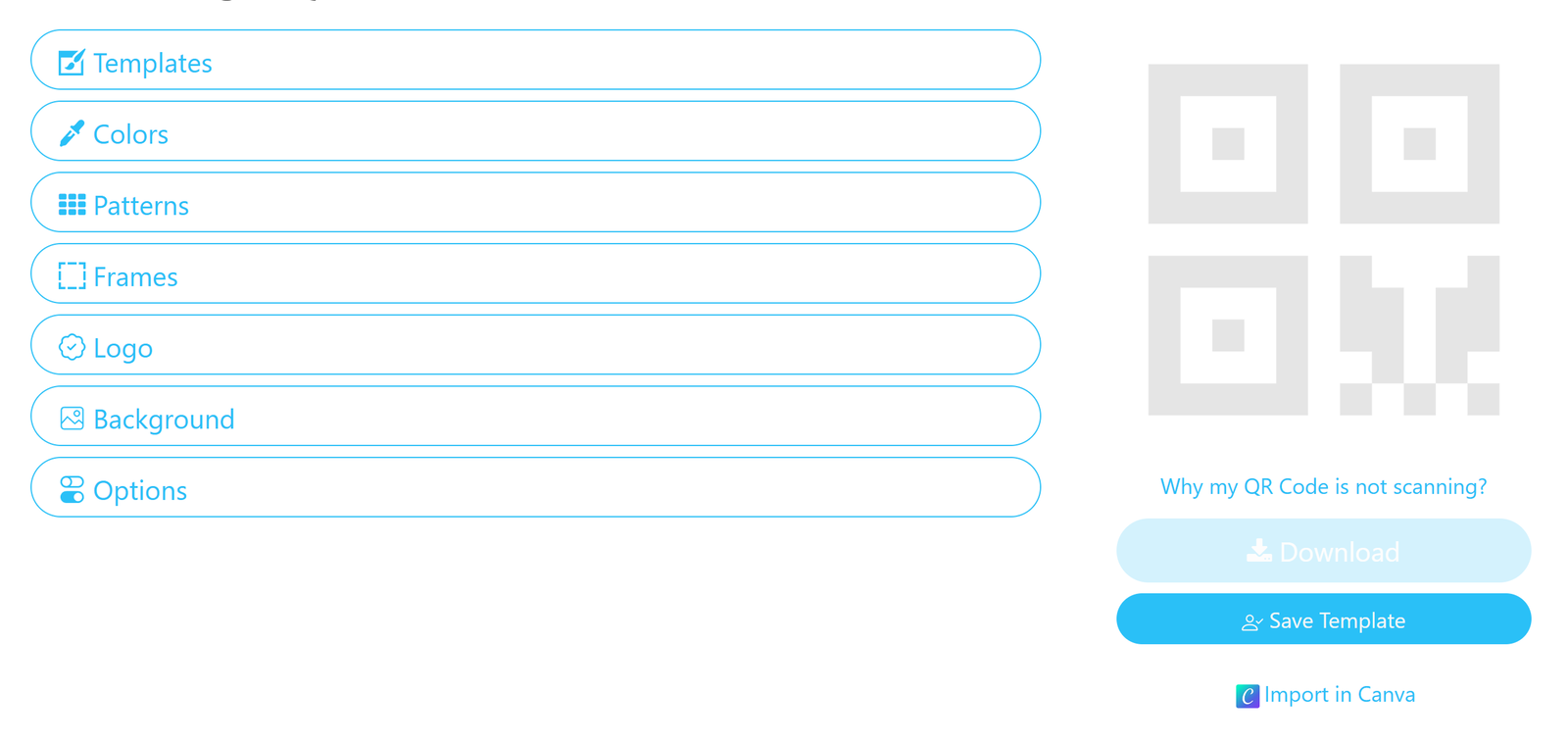
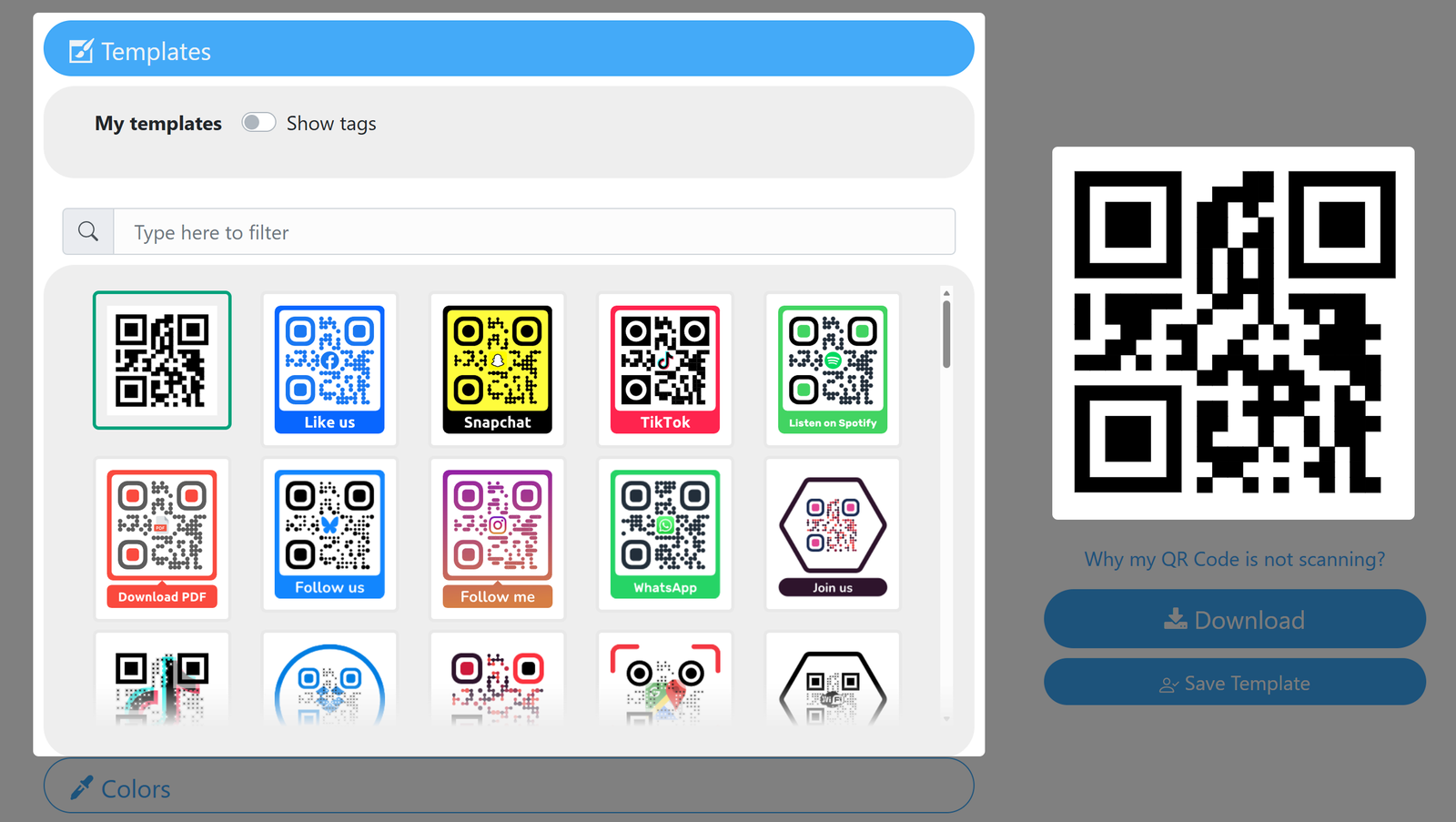
3. QR Code design templates
Choose between pre-made templates and your saved custom designs for your QR Code. Learn more about working with templates.
If you have no template ready and want to create a new design, continue with this article.
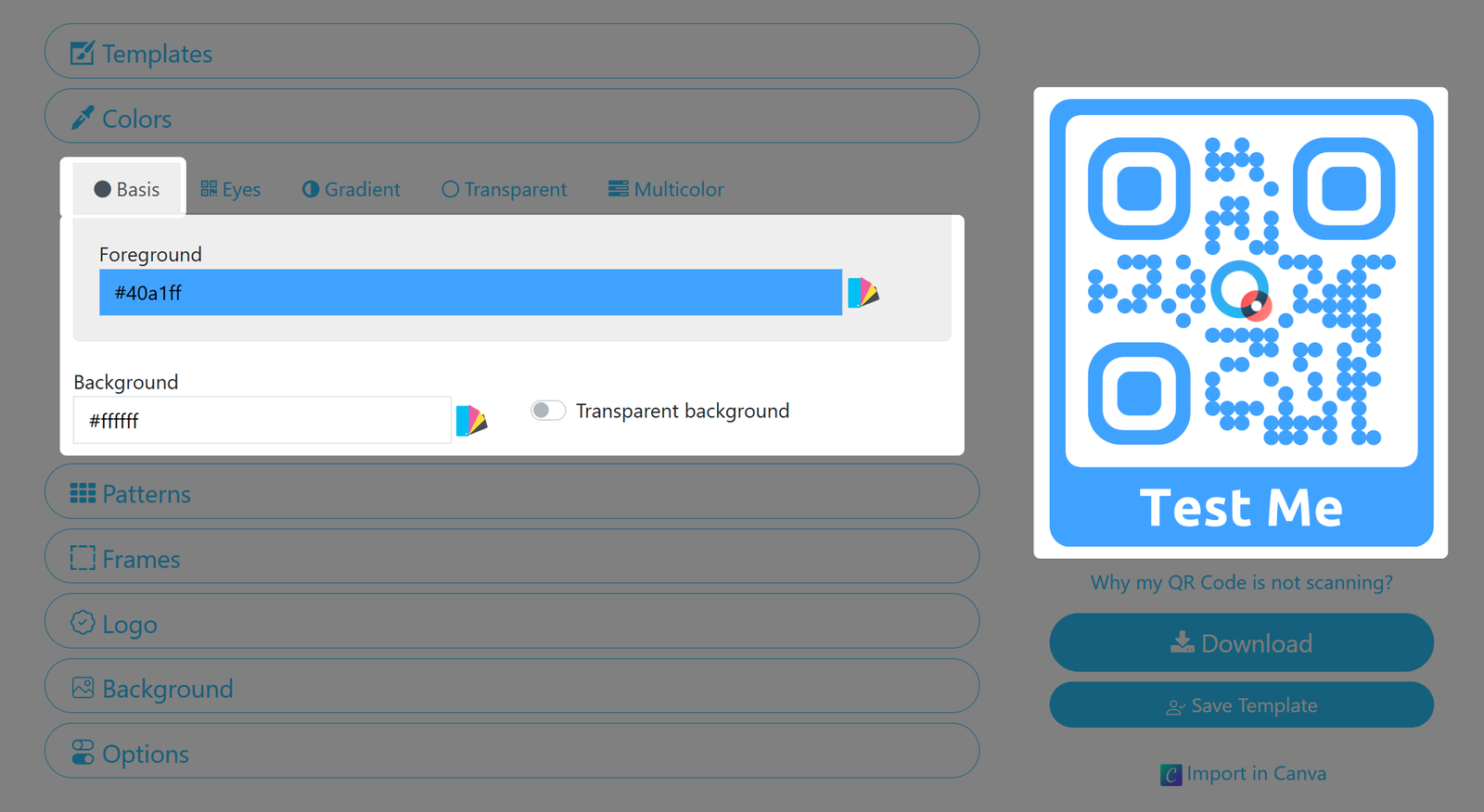
4. Choose your QR Code's colors and background
Hai a disposizione diverse opzioni per dare un tocco di colore ai tuoi QR Code. Vediamole rapidamente.
Si prega di tenere presente che è necessario utilizzare sempre colori che presentino almeno un contrasto moderato tra loro e rispetto allo sfondo. Se il contrasto è troppo basso, ciò potrebbe ostacolare il processo di scansione.
Base
Scegli un colore di base da applicare a tutti gli elementi del codice QR.
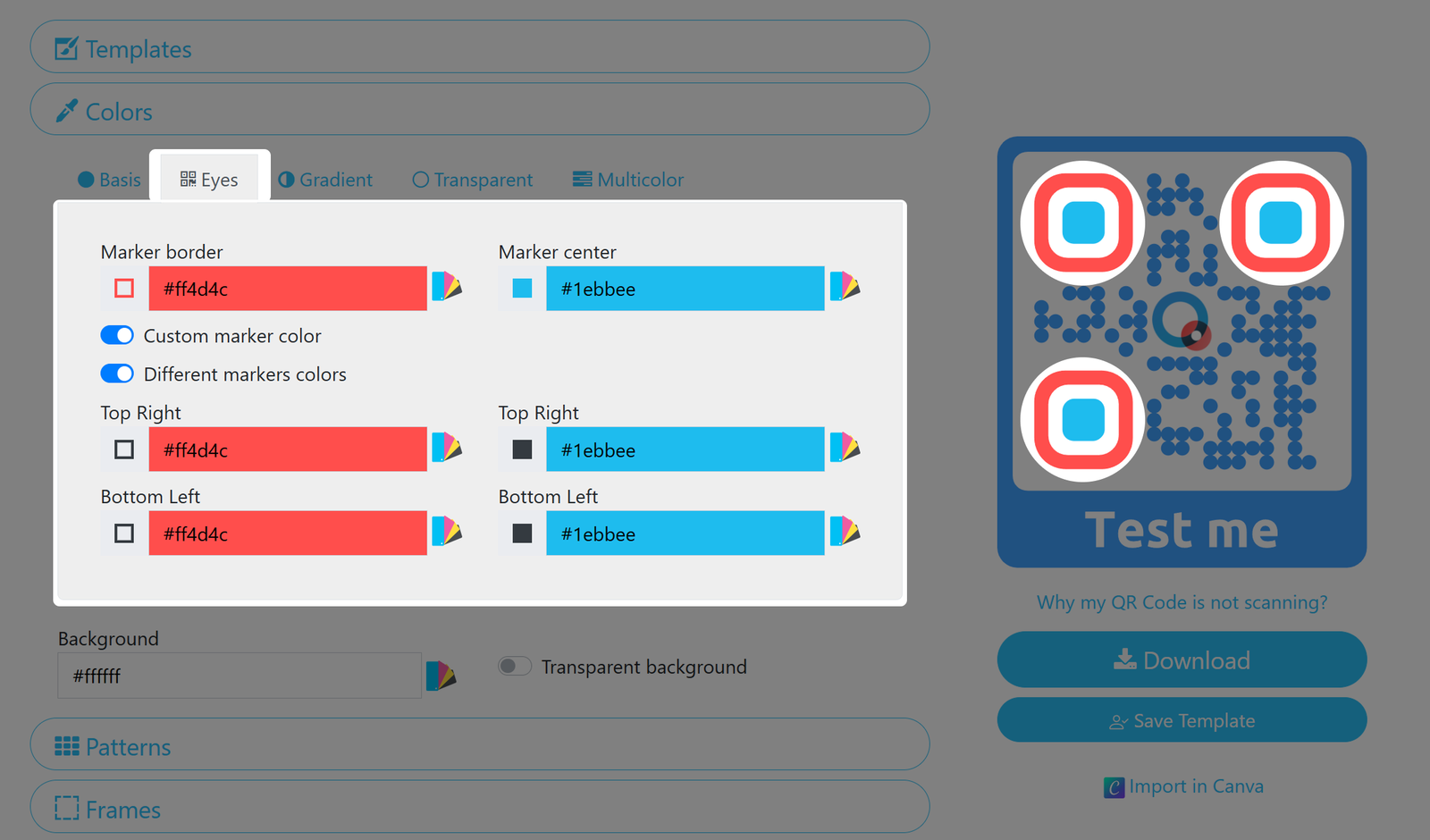
Occhi
Imposta i colori degli "occhi" del tuo codice QR. Puoi utilizzare colori diversi per ciascuno dei tre centri e per i bordi.
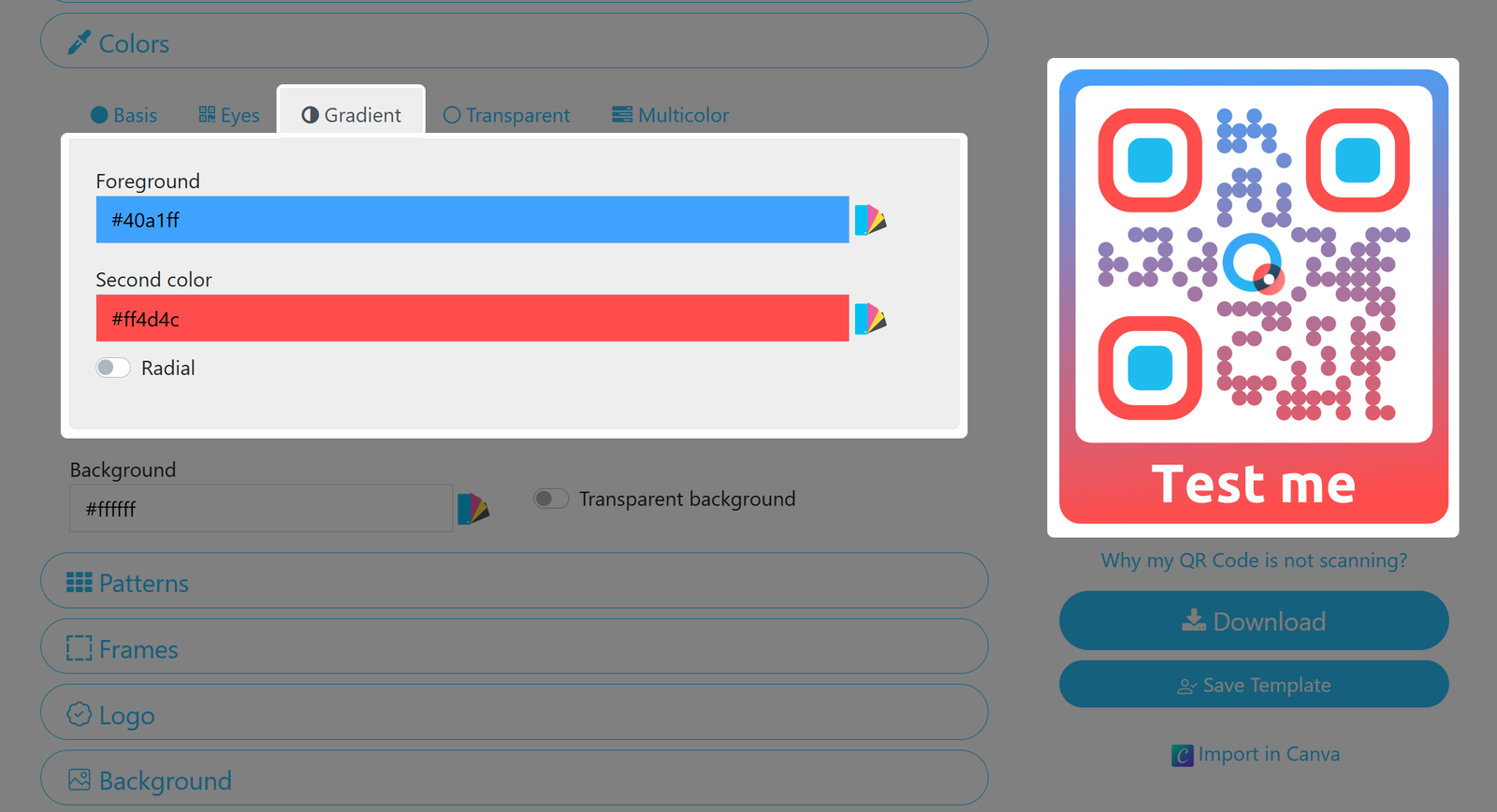
Gradiente
Applica una sfumatura di colore dall'alto verso il basso. Se gli "Occhi" sono stati precedentemente impostati, non saranno influenzati dalla sfumatura. Visualizza i colori in modo radiale attivando l'opzione.
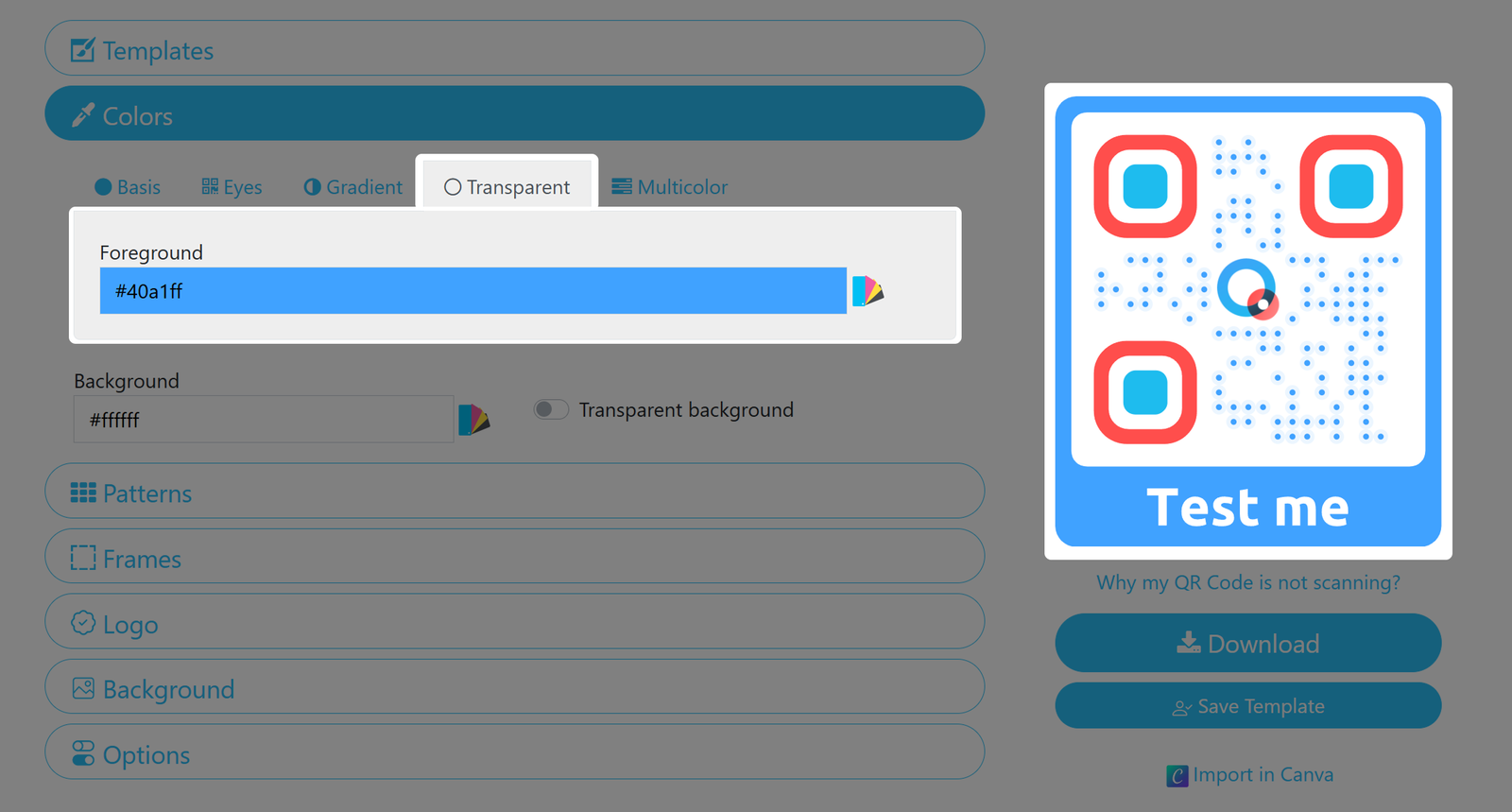
Transparente
Utilizza questa opzione insieme a "Sfondo trasparente" (vedi sotto) se desideri che il supporto su cui stampi il codice funga da sfondo visibile e vuoi che il codice risulti più leggibile su qualsiasi sfondo, anche su uno dello stesso colore dei pixel.
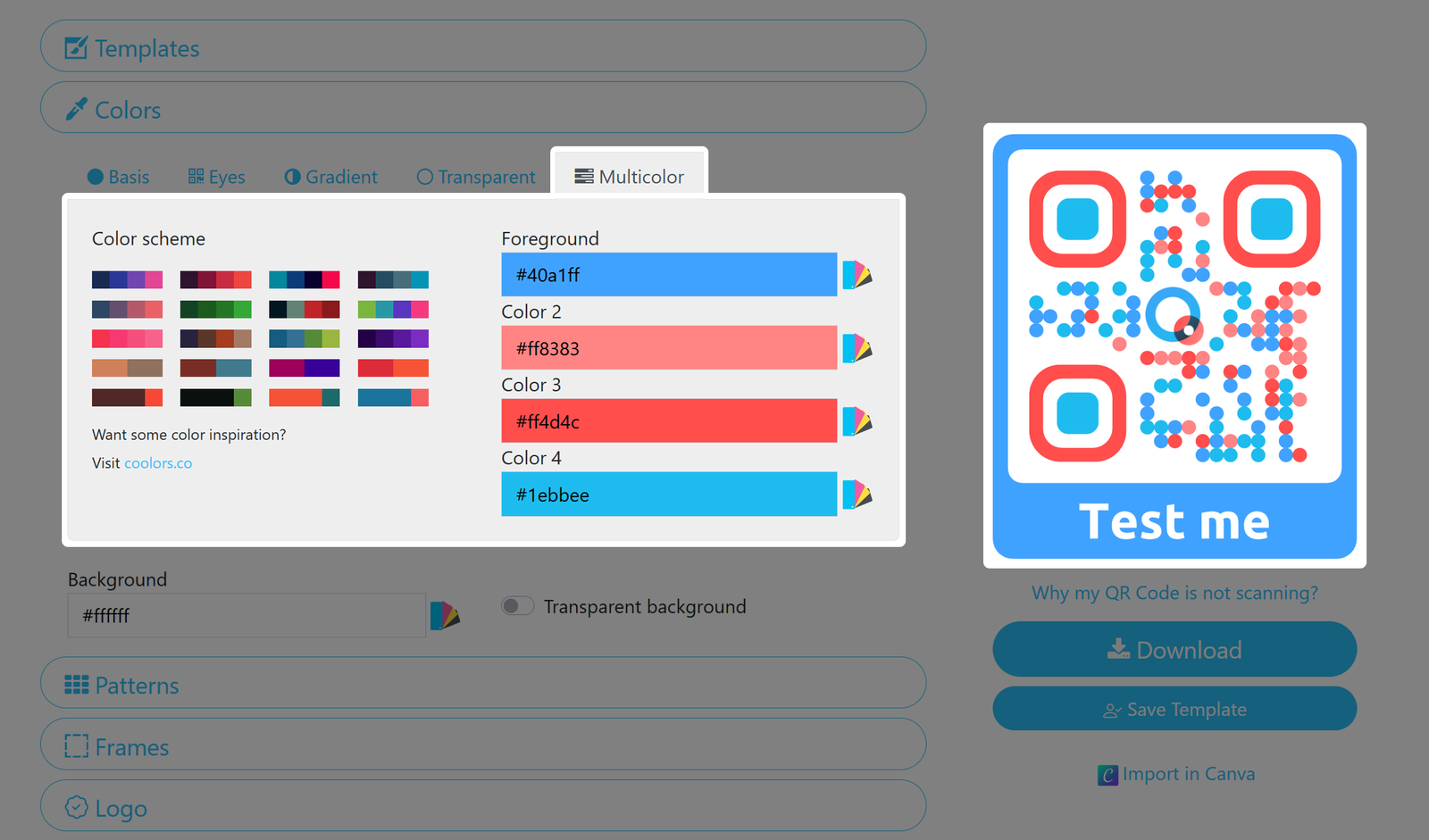
Multicolore
Dai al tuo codice QR un tocco di branding davvero unico, applicando i colori della tua identità aziendale anche al più piccolo dei punti. Imposta un colore di primo piano e fino a tre colori aggiuntivi per rendere il tuo codice QR ancora più vivace.
Sfondo
Per tutte le impostazioni sopra indicate, è possibile impostare anche il colore di sfondo desiderato per il proprio progetto.
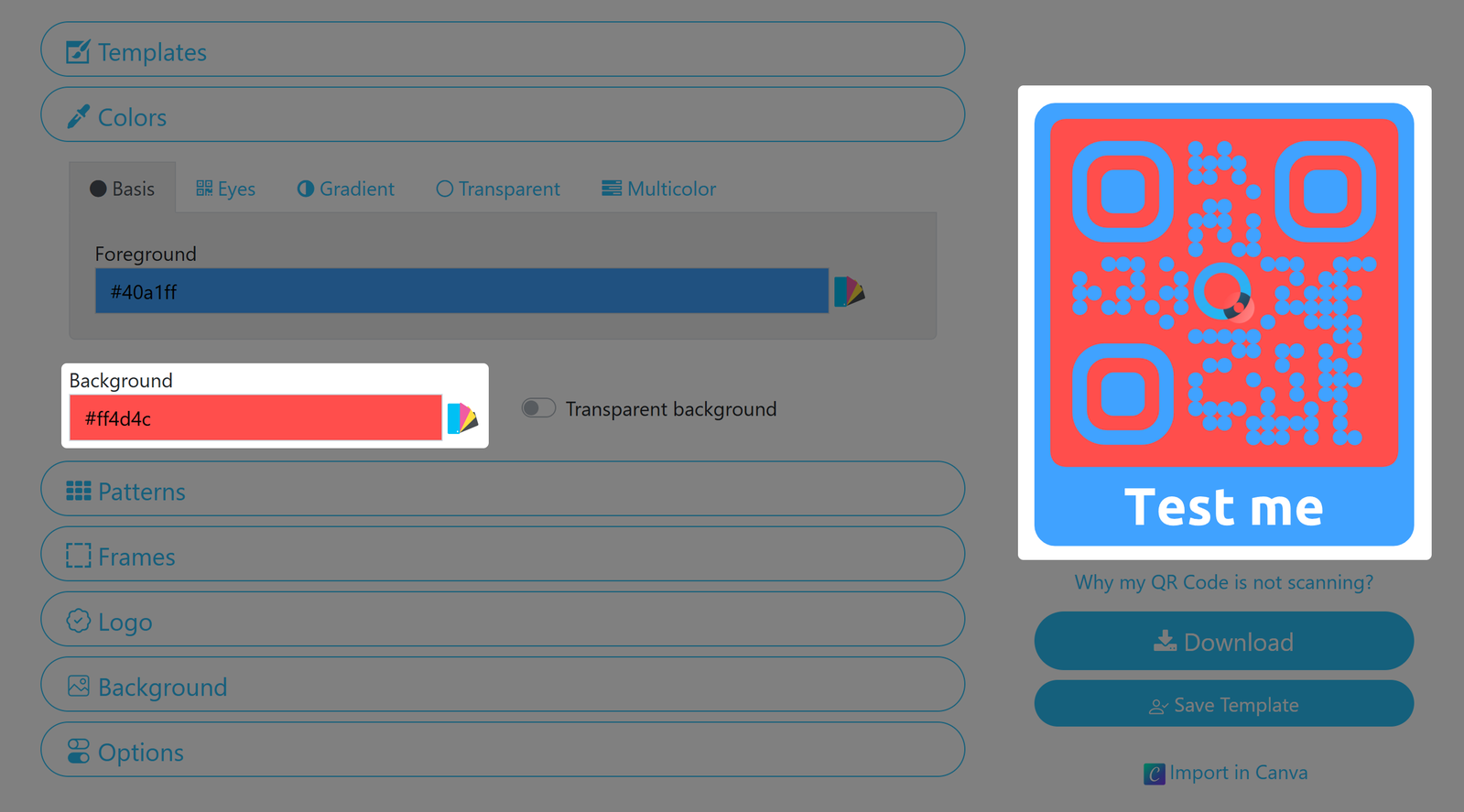
È possibile attivare l'opzione "Sfondo trasparente": verranno visualizzati solo gli elementi del codice QR, ma non il colore di sfondo; questa opzione è utile se si desidera che il supporto su cui verrà stampato il codice QR risulti visibile come sfondo. Le regole sul contrasto rimangono comunque valide!
Se desideri stampare il codice su un supporto dello stesso colore del codice, utilizza anche la scheda “Trasparente”!
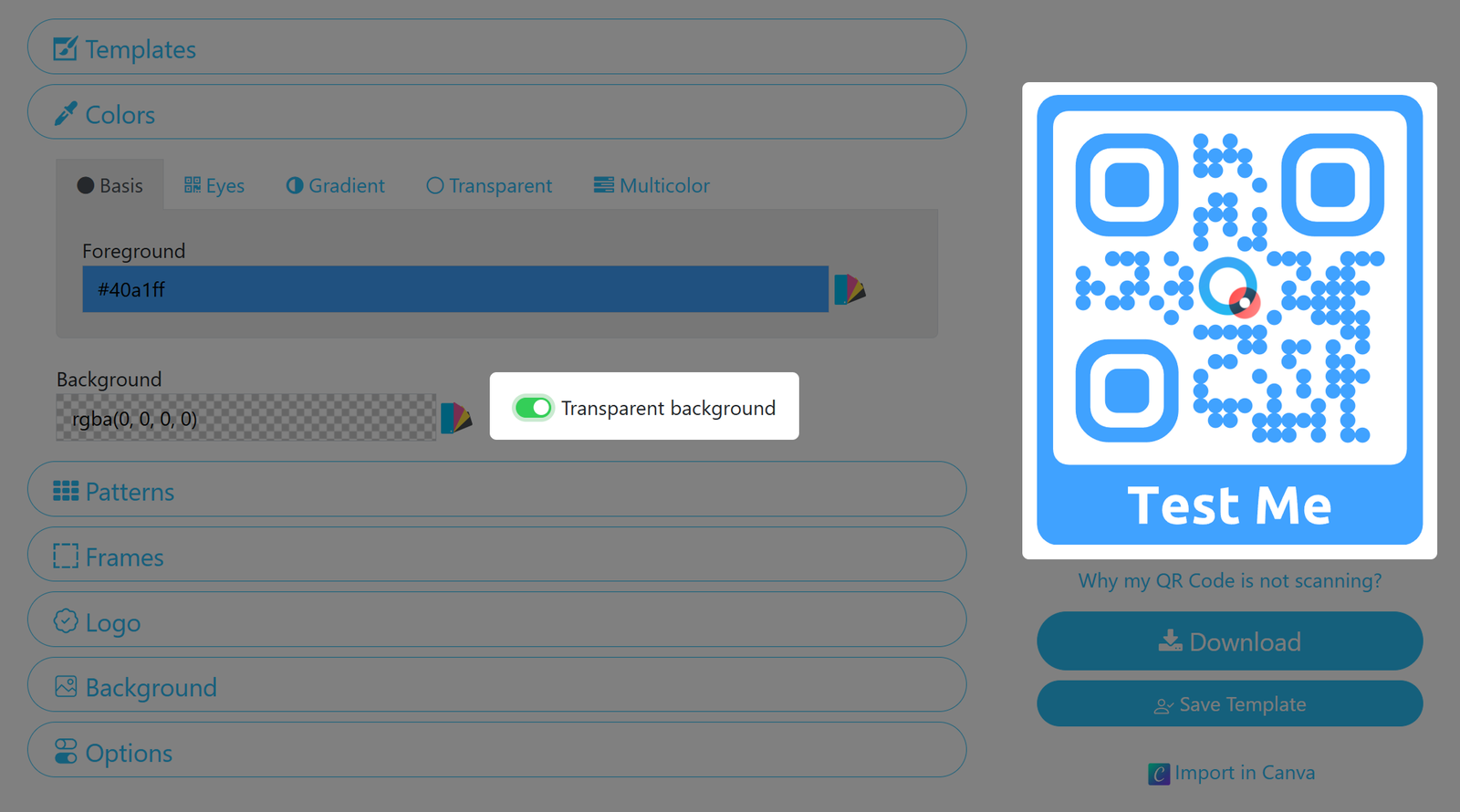
5. Select design patterns for your QR Code
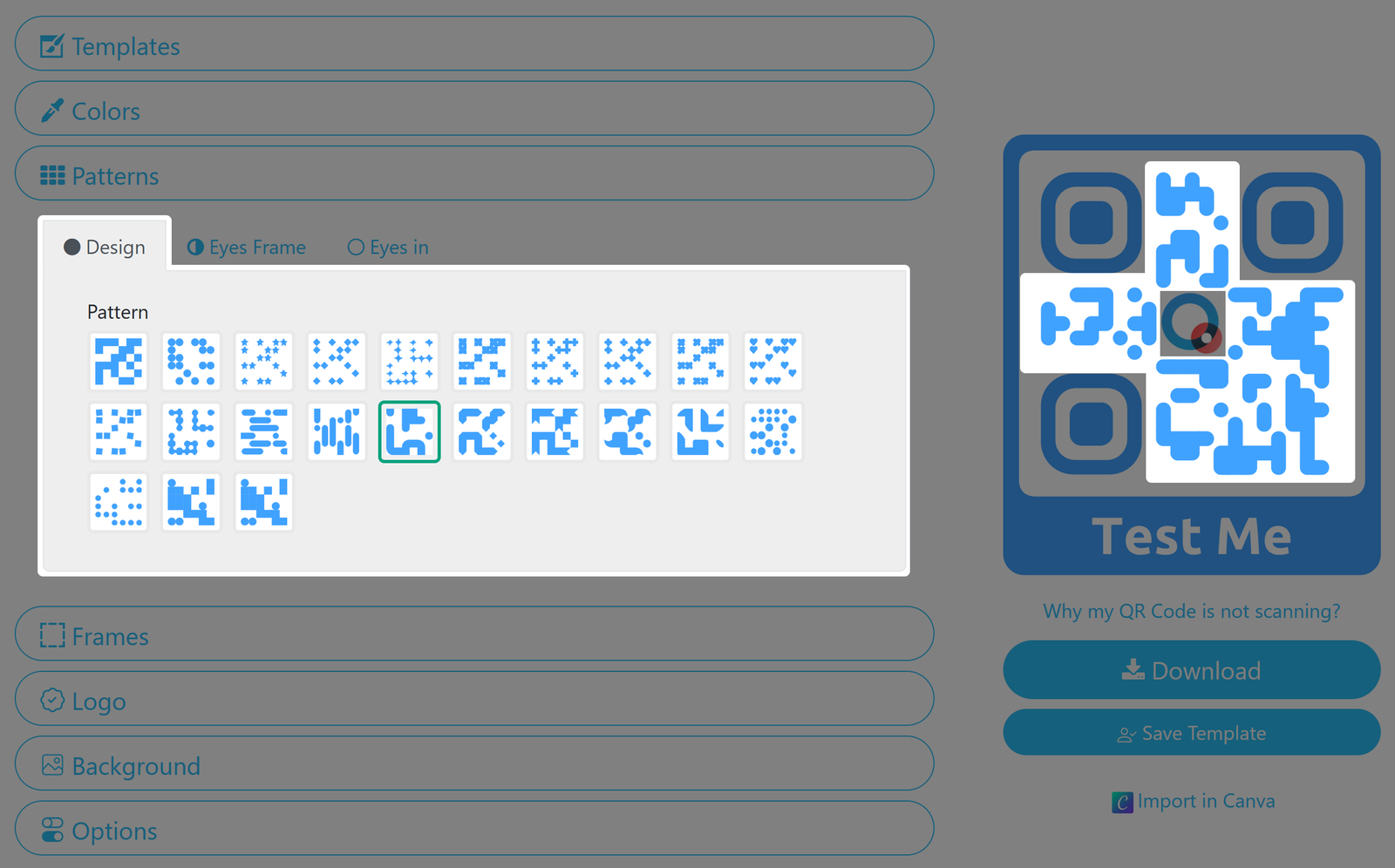
The markers are important, as they indicate the correct orientation of the QR Code.
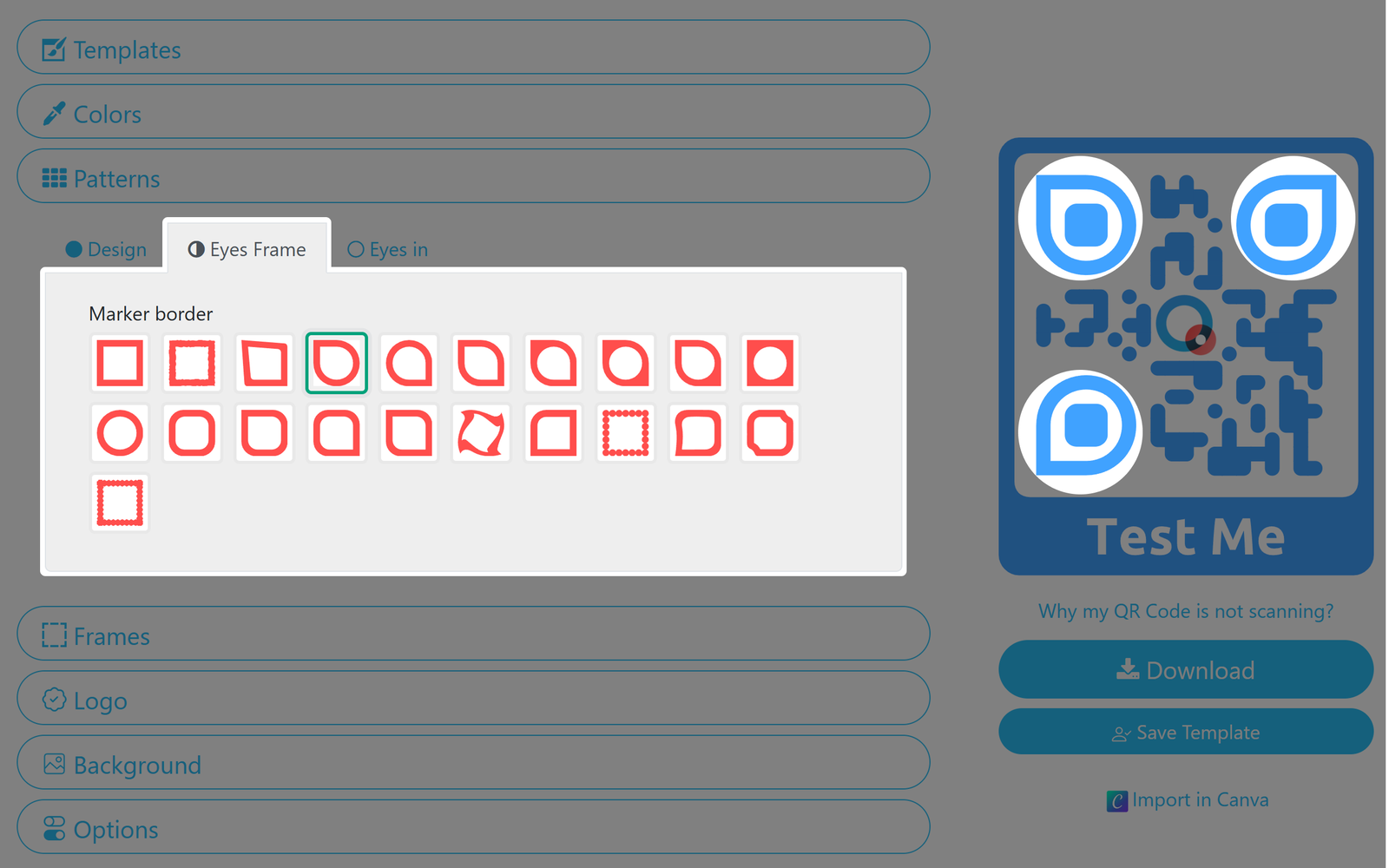
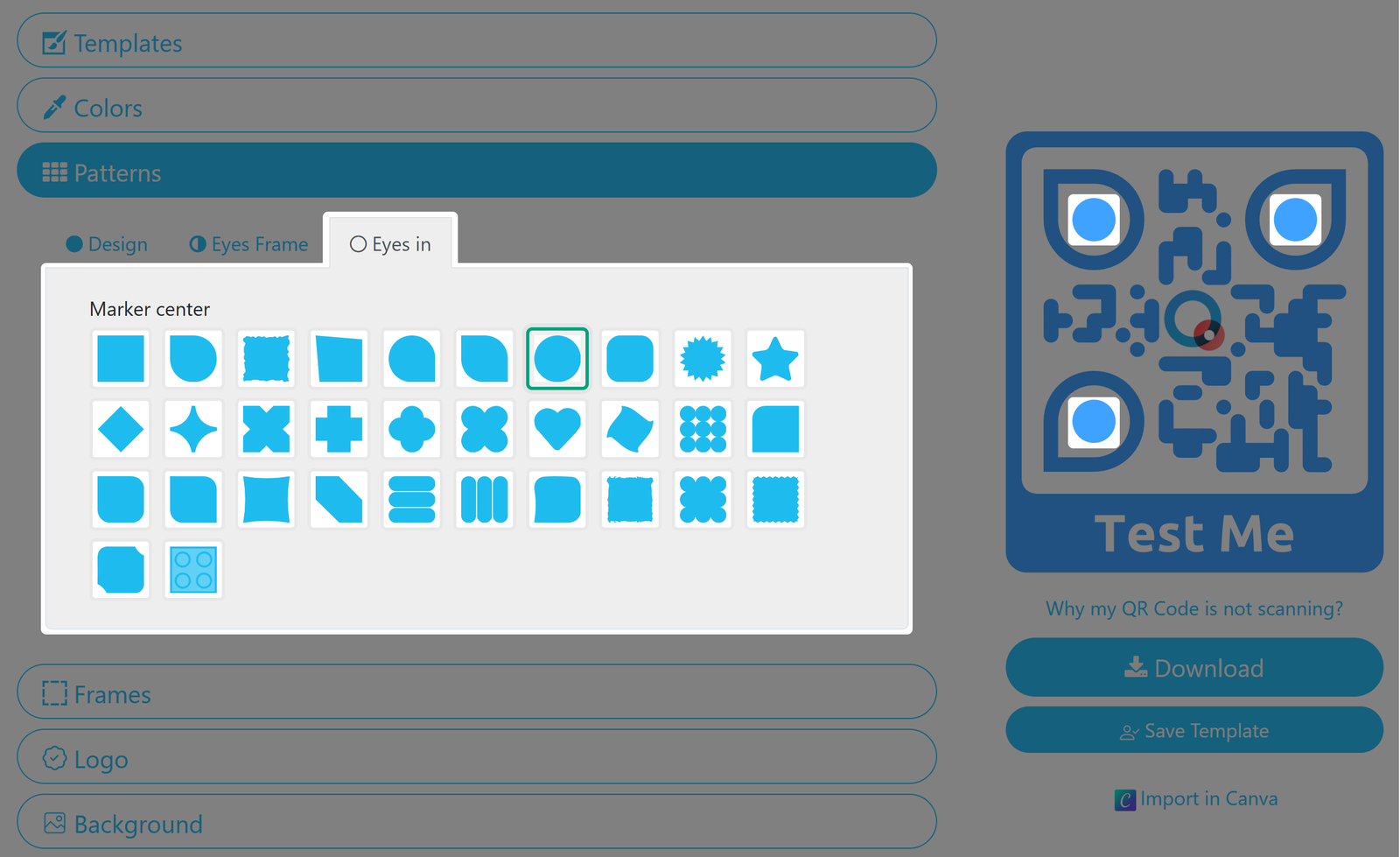
6. Select your QR Code's frame and set a label
Choose between frames with or without labels and define a separate frame color. You can also set the text size, font, and color of your label.
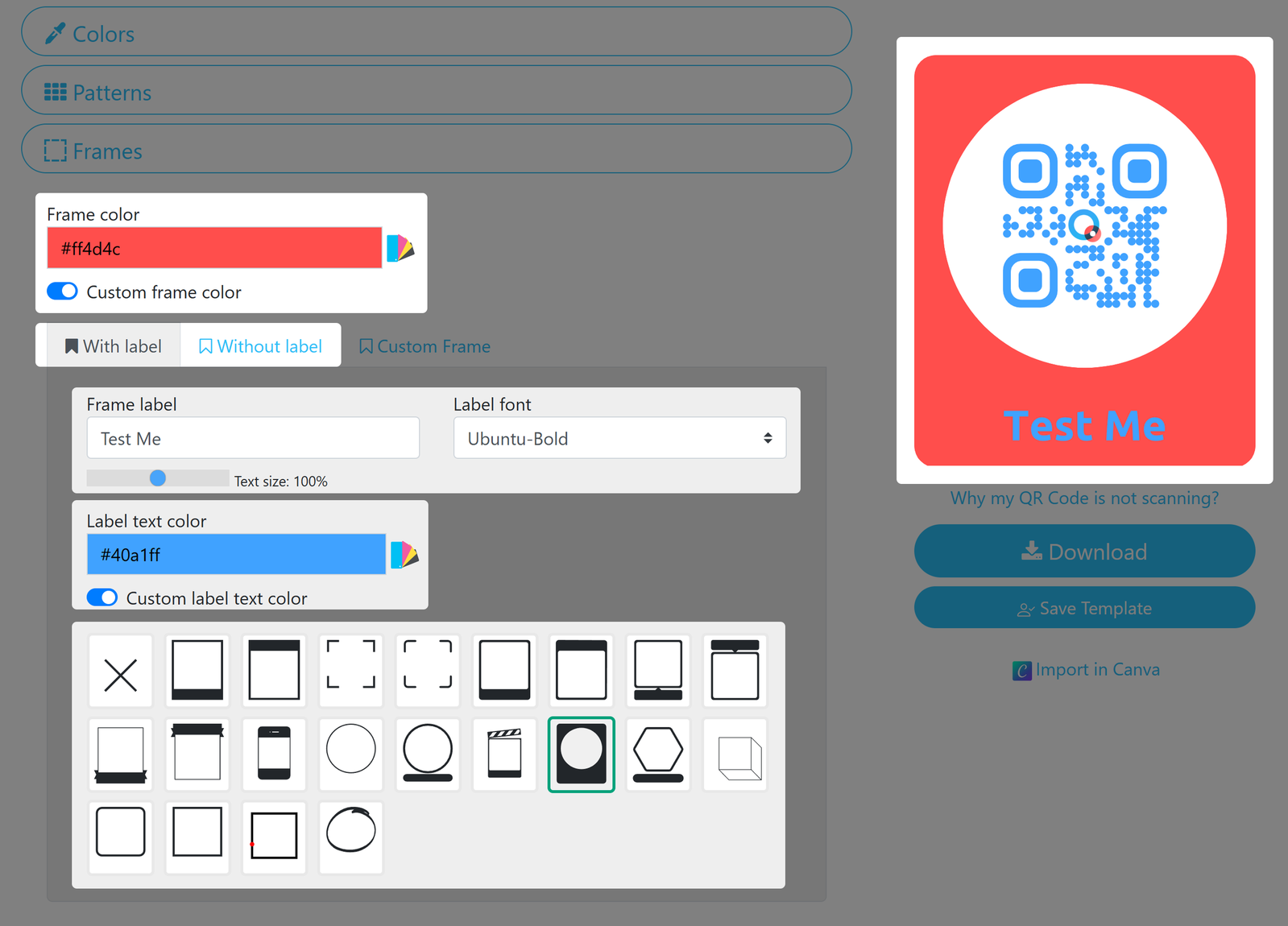
Custom Frames are only available for our Enterprise customers. Contact us if you want to learn more.
7. Choose or upload your QR Code's logo
You can also set your logo as the QR Code's background (see below).
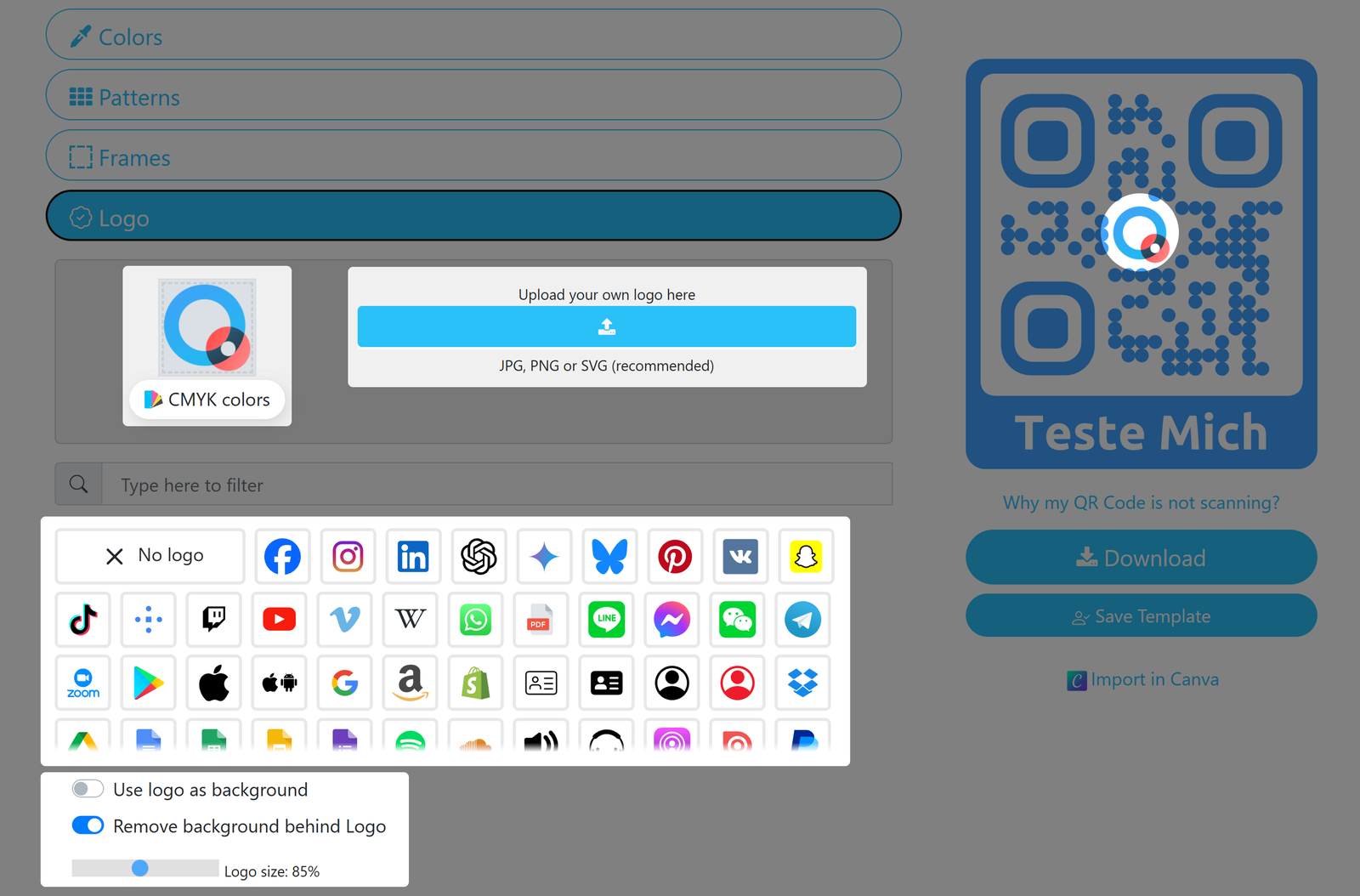
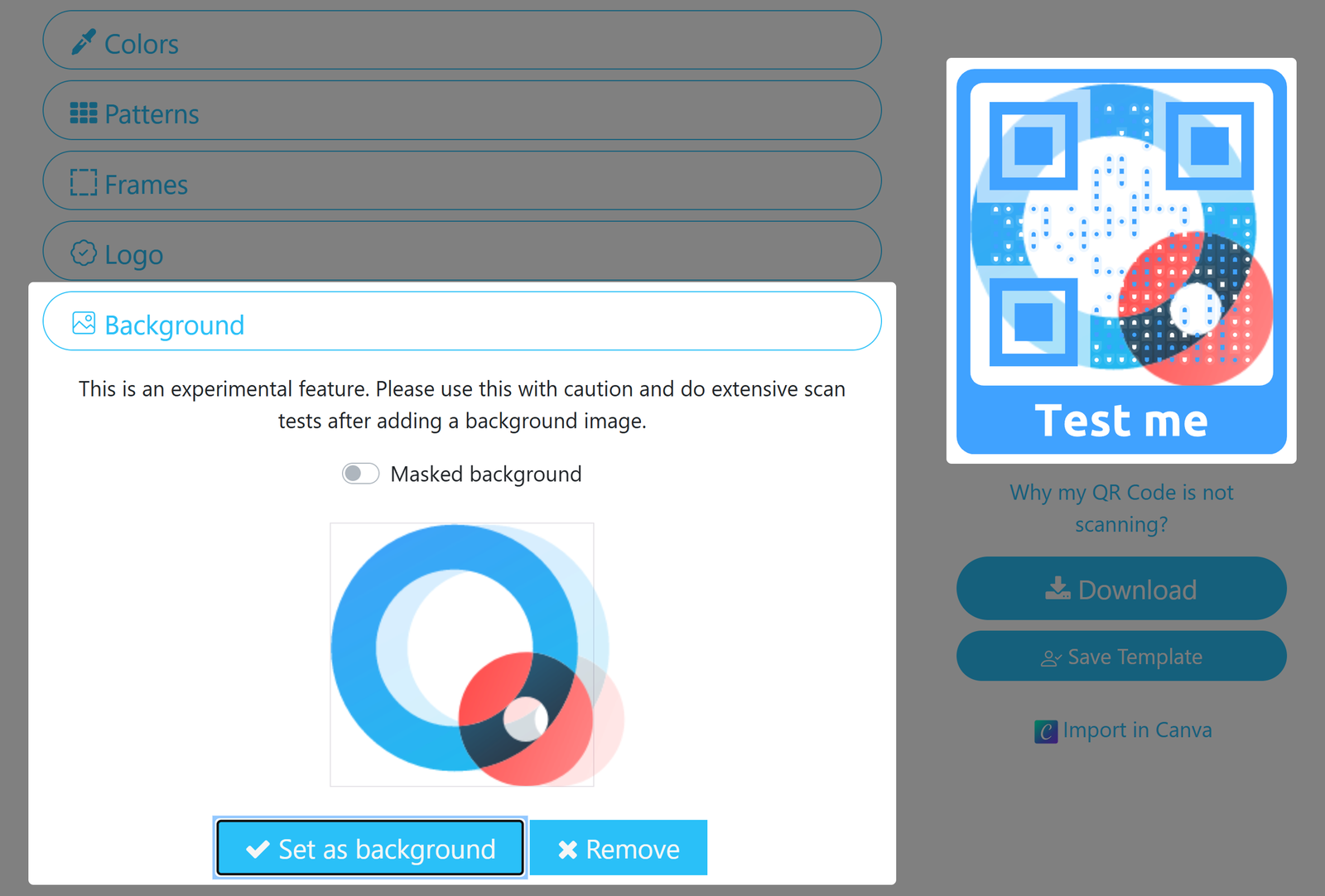
8. Use an image as your QR Code's background
You can upload an image and set it as your QR Code's background.
Please be aware that this is an experimental feature. When using it, please make sure to also activate Transparent in the Colors Pane, and always test your QR Code - especially before printing in high volumes!
9. Set your QR Code's size and ECL
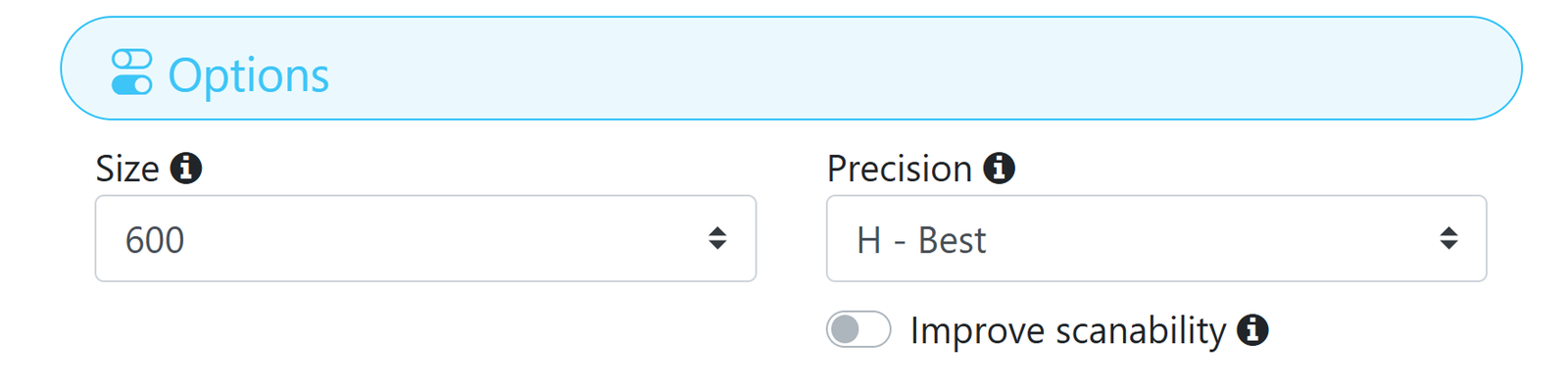
Via the options pane you can choose your QR Code's Size and Precision (also known as Error Correction Level). The standard settings of 600 and H - Best are recommended, but the optimal values variy depending on the type of design you are creating.
The size parameter only affects downloaded QR Codes in PNG format. Vector formats do not have a fixed size since the can be scaled to any size.
In case your QR Code does not properly scan, try the Improve scanability setting and retest the Code.
10. Download your QR Code
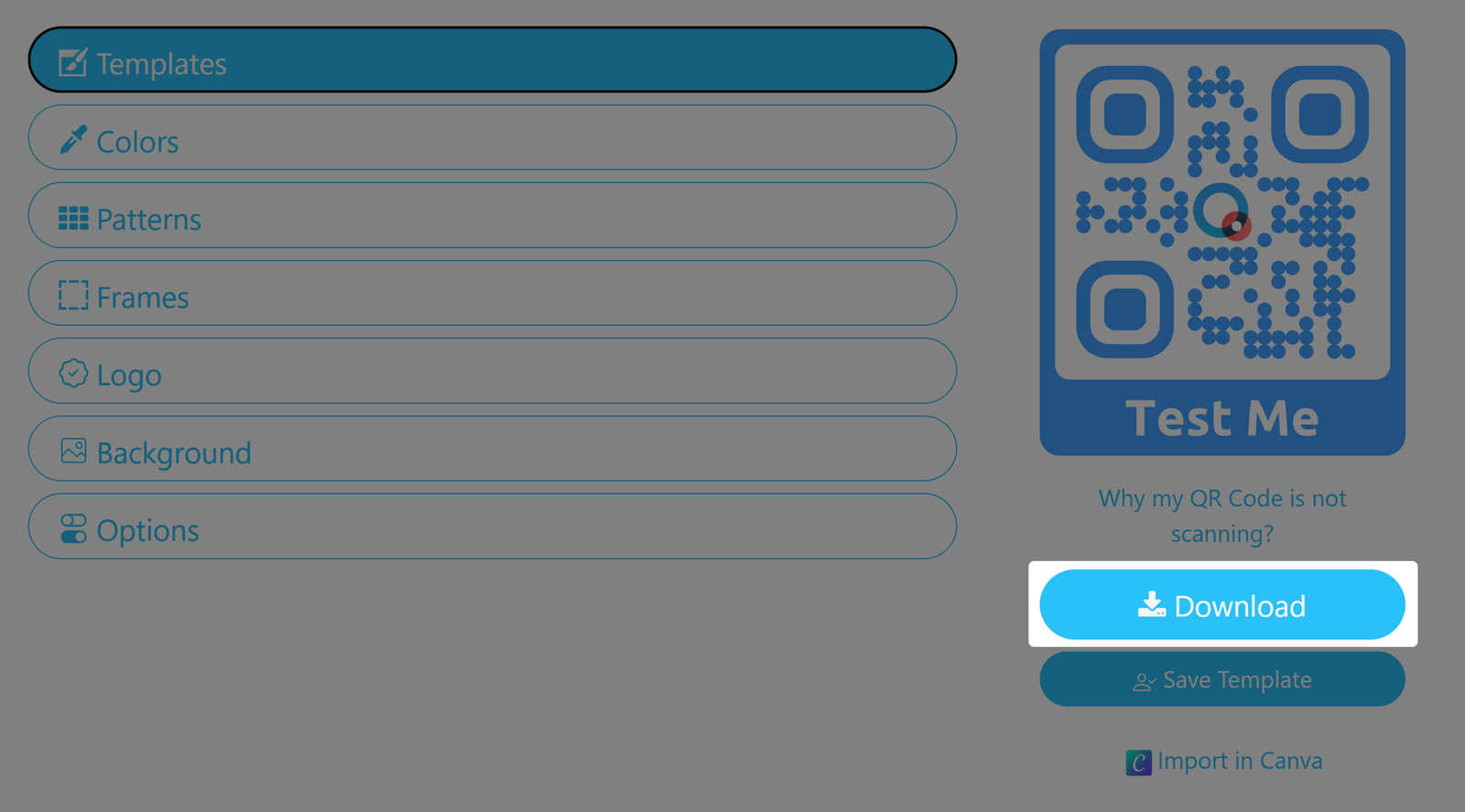
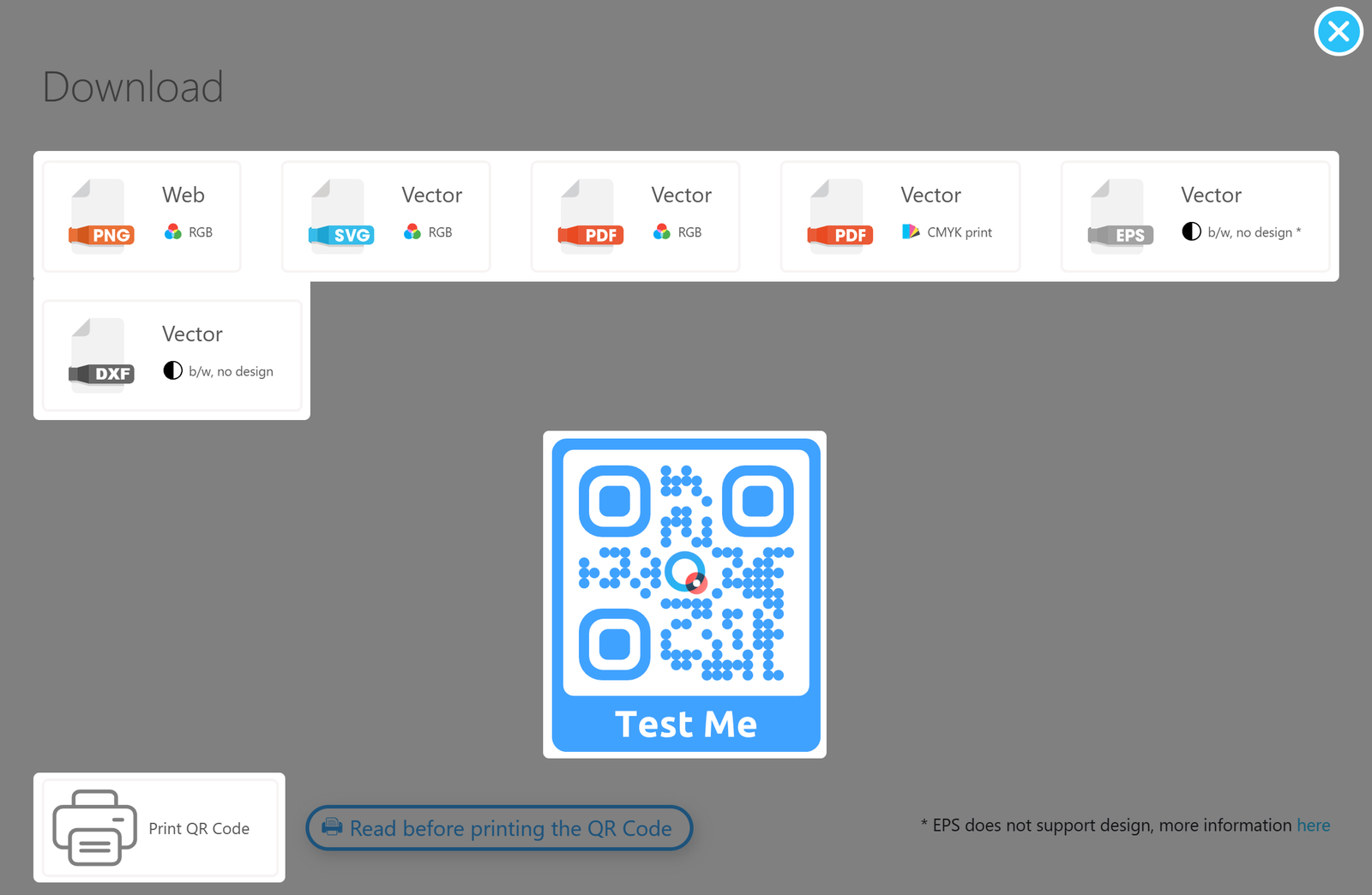
You can download your designed QR Code as PNG, SVG or PDF, and without designs as EPS or DXF; this will mainly depend on whether you want to print your Code or use it in digital media.
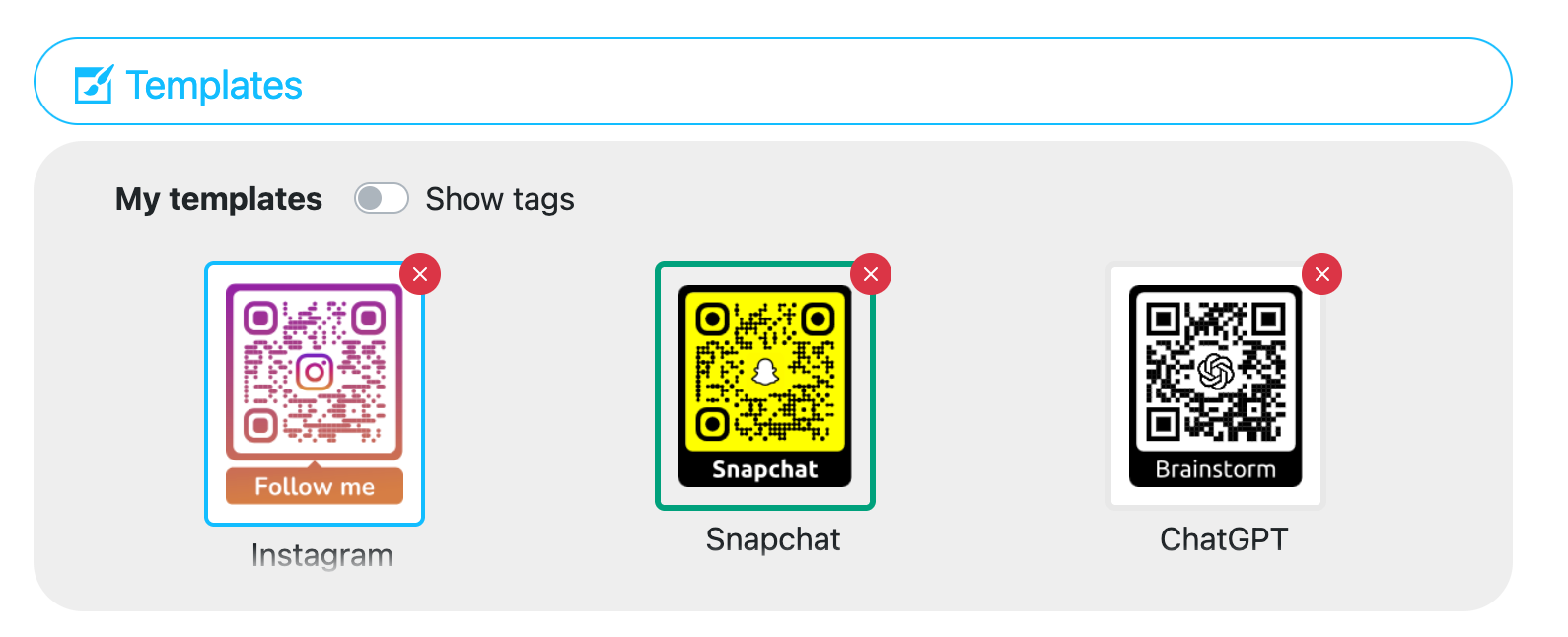
Working with templates
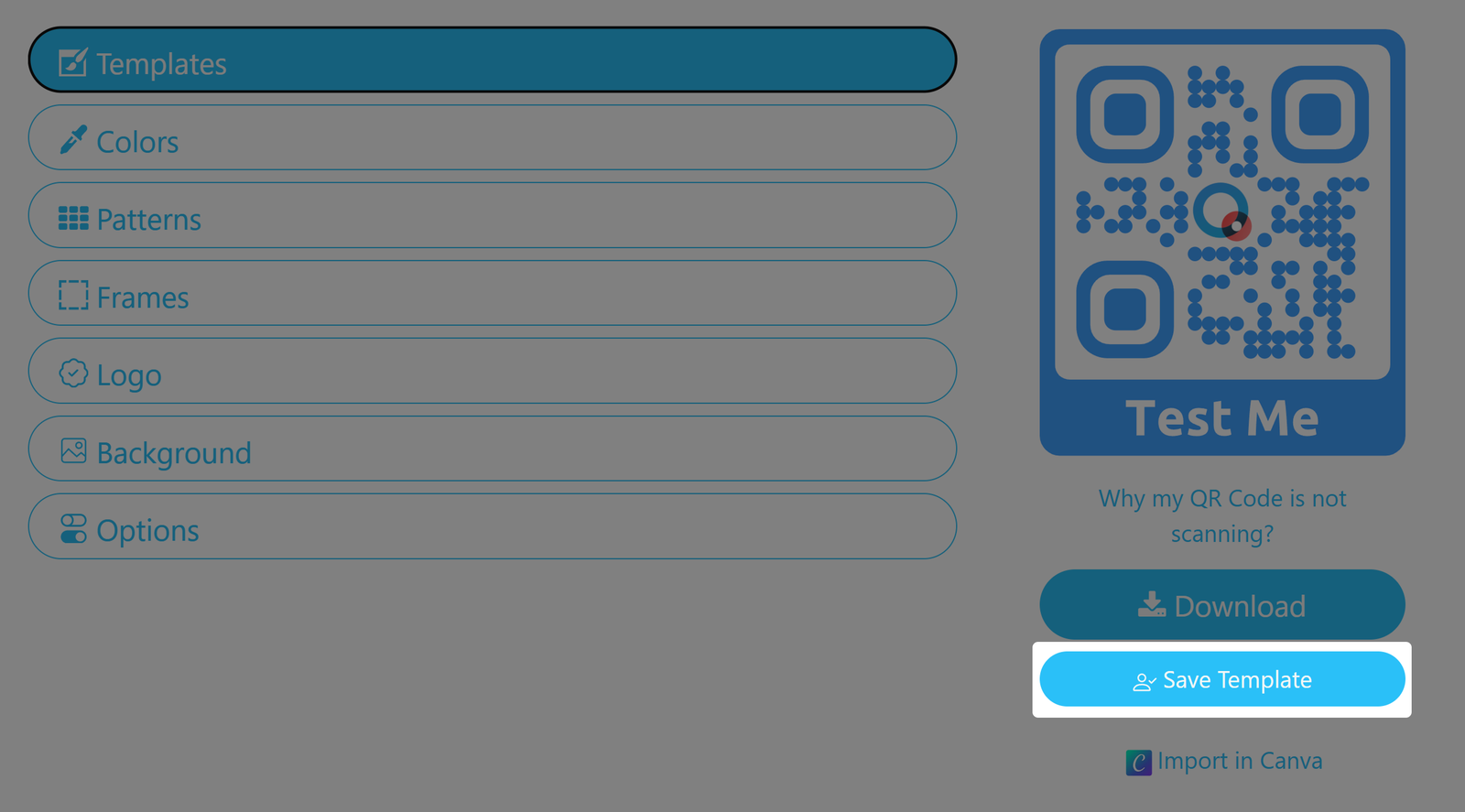
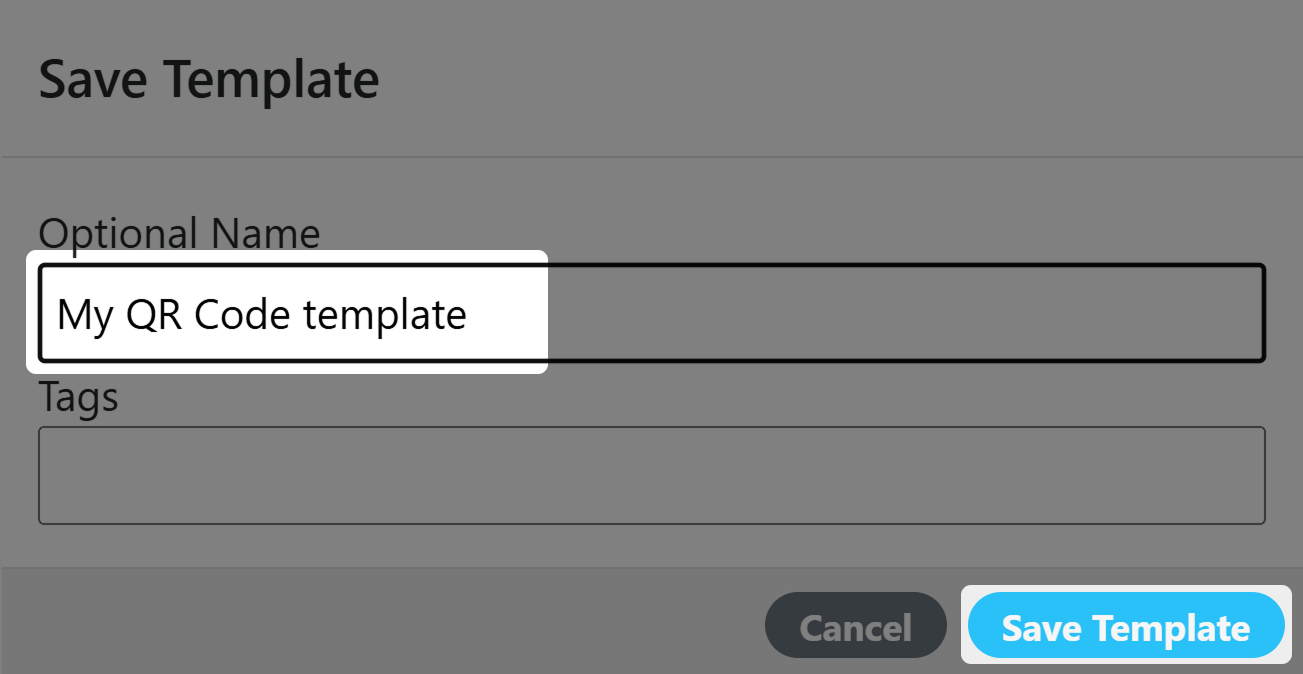
Saving your custom templates
Optional template attributes
Template Markers
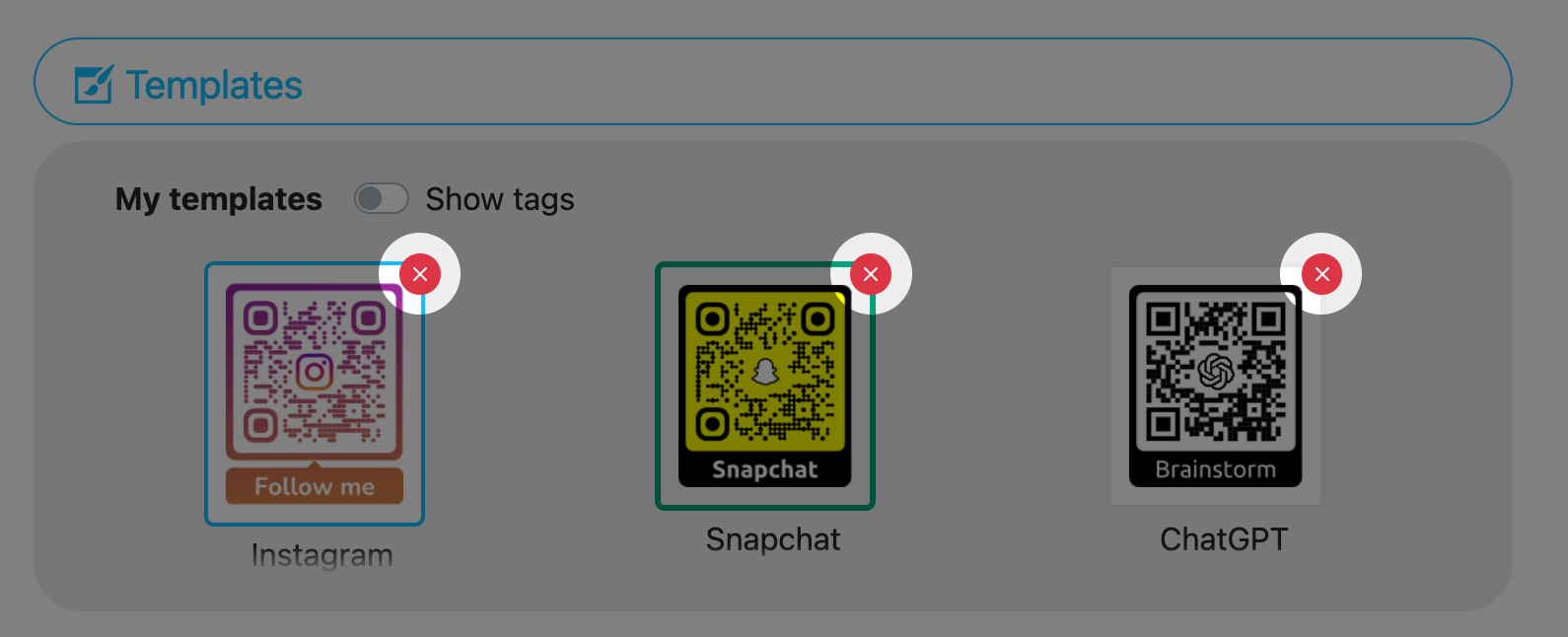
Deleting a template
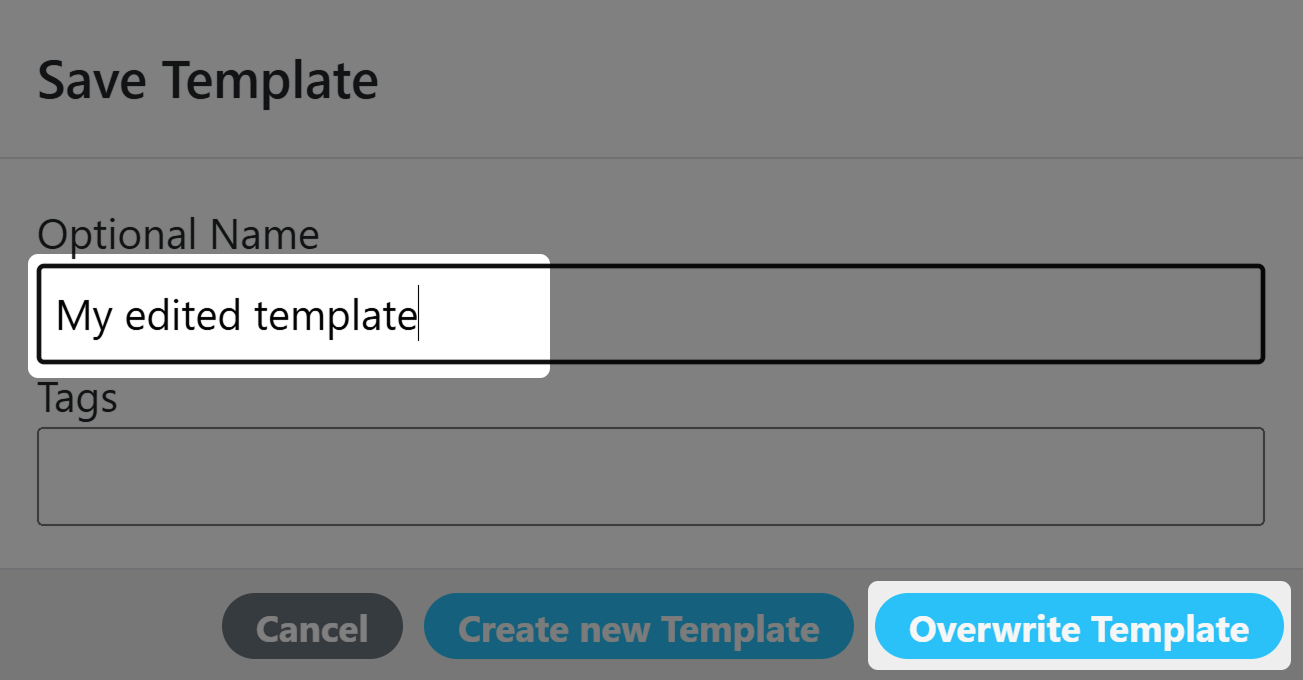
Overwriting an existing template
Limiti dei progettisti
Risultato
A seconda del formato file selezionato e delle funzionalità utilizzate in un codice QR creato con Designer, la tabella seguente indica se il risultato è puramente vettoriale o una combinazione di grafica vettoriale e raster.
| SVG | EPS deprecated | ||
|---|---|---|---|
| Con logo SVG | Vettore puro | Vettore puro | Vettore puro |
| Con Gradient | Vettore puro | Vettore puro | Vettoriale/raster misto |
Editor / Visualizzatore
A seconda del formato selezionato e delle funzionalità utilizzate in un codice QR creato con Designer, la tabella seguente illustra quali visualizzatori o editor è possibile utilizzare per visualizzare e modificare i codici QR.
| SVG | EPS deprecated | ||
|---|---|---|---|
| Con logo SVG | Solo browser | Browser / Illustrator | Illustrator |
| Con Gradient | Browser / Illustrator | Browser / Illustrator | Illustrator |
I risultati potrebbero variare a seconda della versione e delle funzionalità del software di progettazione utilizzato.